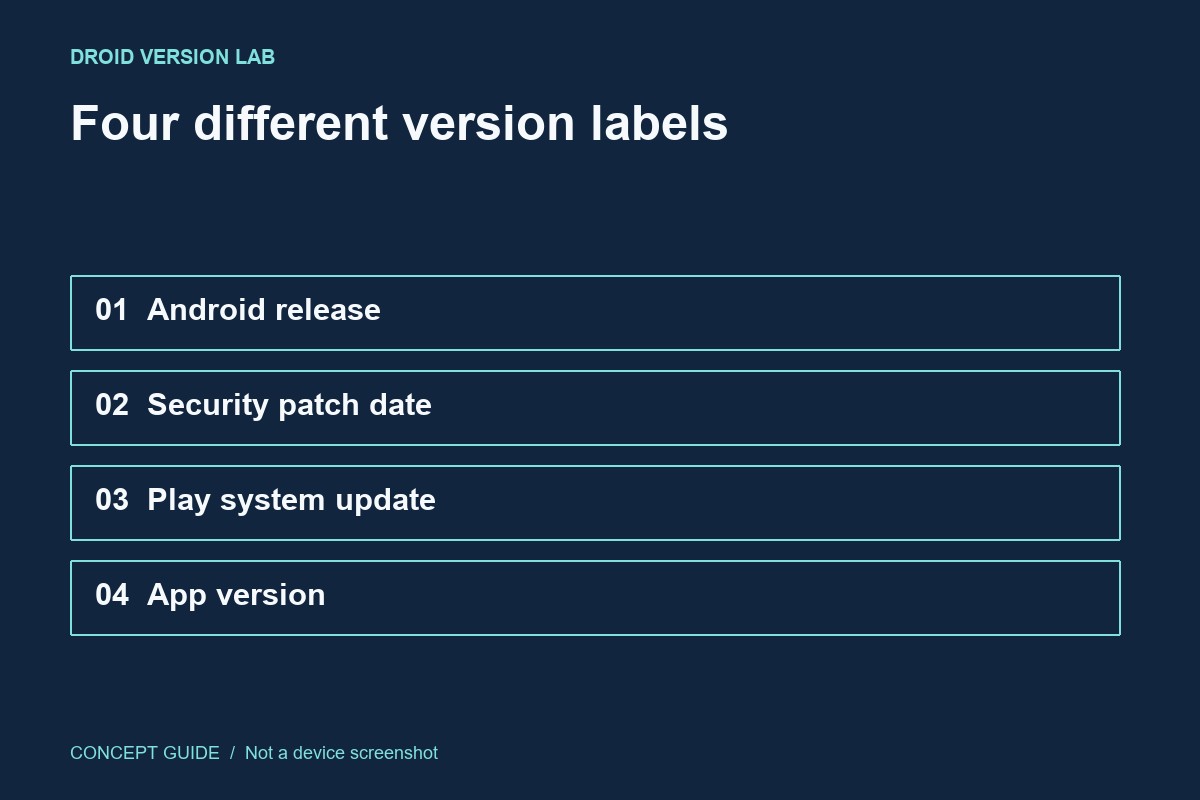
A phone can show a recent Android release and an older security patch at the same time. These labels describe different update tracks, so combining them into a single claim that a phone is current hides useful information.
Make a small version record
Open the device information screen and copy the Android version, Android security update date, Google Play system update date and build number. Keep the exact model identifier alongside them. A marketing name alone may cover several regional models. These details give a support conversation a reproducible starting point; they are not a score of overall device security.
Match the label to the question
Use the Android release when checking whether an operating-system feature is available. Use the security patch date when discussing the installed security update level. Treat the Google Play system update as a separate entry, rather than assuming it changed with the main system update. An individual app also has its own version, which belongs in a separate row of your notes.
What a mismatch means
Different dates are a reason to check the appropriate update screen, not proof that an update failed. Check on a stable connection, allow any requested restart, then read the labels again. If a date remains unchanged, consult the manufacturer for the exact model and region. Do not install a package intended for a similarly named device just to make its date look newer.
A useful stopping point
You are finished when you can state which component you checked and what the phone reports. Record the check date as well. That is more useful than writing latest, a description that stops being meaningful as soon as another release appears.