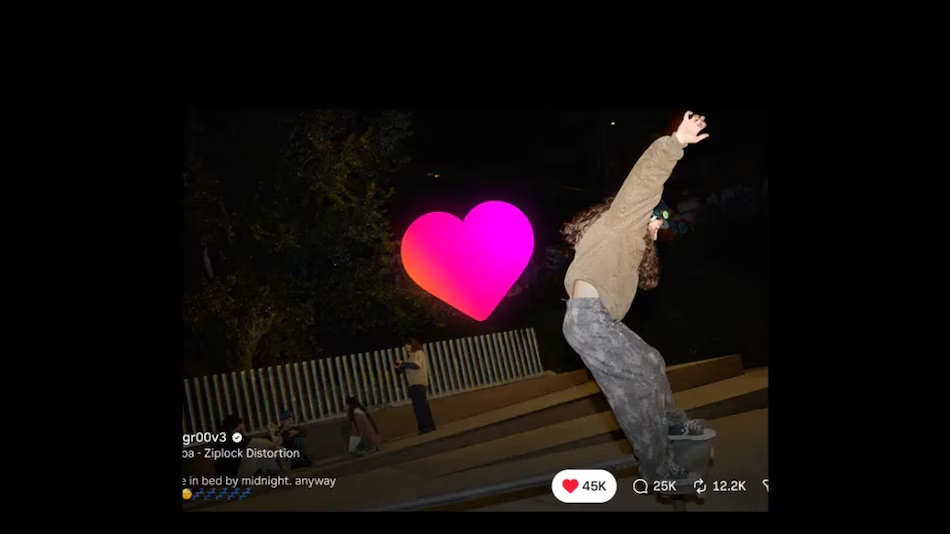
If you frequently watch Instagram Reels, you can now view them on your television via a dedicated app for Apple TV. This app allows you to browse videos from creators, as well as longer-form content and live streams, without needing to mirror your phone screen. Please note, however, that the app is focused on content consumption and does not include the full suite of features found in the Instagram mobile app. You will need an Apple TV running tvOS 26 or later to use it. Here is how to download and use the app.
How to download Instagram on Apple TV
First, ensure that your Apple TV is running tvOS 26 or later; this software version is required for the Instagram app.
Open the App Store from your Apple TV home screen.
Access the search bar and use the on-screen keyboard or your remote to type “Instagram.”
Select “Instagram” from the search results to view its app listing.
Choose “Get” to install the app. If prompted to confirm the download, follow the on-screen instructions.
Once the installation is complete, open Instagram from your home screen and follow the provided instructions to set it up.
You do not need an iPhone to install or use Instagram on your Apple TV. However, the specific login and account verification process may vary, so please follow the on-screen prompts when you open the app for the first time.
What can you do with Instagram on Apple TV?
The Instagram app on Apple TV is primarily designed for watching videos. You can browse Reels, view longer-form videos and live streams, and discover content from various creators. It also supports cross-device playback, allowing you to pick up right where you left off.
Unlike the mobile app, the TV version of Instagram does not support all features. You cannot create posts, Reels, or Stories, nor can you access direct messages. Furthermore, you cannot post comments via the TV app. Therefore, if you wish to interact with videos or send messages, you will need to switch back to your mobile device.
If you cannot find Instagram in the Apple TV App Store, first verify that your device supports the app. You will need an Apple TV HD or Apple TV 4K running tvOS 26 or later. To check for updates, go to Settings > System > Software Updates > Update Software. Once your device is updated, open the App Store on your Apple TV and search for Instagram.
If Instagram still does not appear, check the region setting for your App Store, as availability may vary by location. Ensure that you are searching on an Apple TV streaming device rather than a smart TV, as these are different platforms. If Instagram appears in the App Store but cannot be downloaded, check that you have sufficient storage space and ensure there are no restrictions preventing the installation of apps.
Frequently Asked Questions
- How do I download Instagram on Apple TV?
Open the App Store on an Apple TV running tvOS 26 or later, search for “Instagram,” and select “Get” to install it. - Do I need an iPhone to use Instagram on Apple TV?
While an iPhone is not required to install or use Instagram on Apple TV, the app may require additional steps to log in or verify your account. - Can I post Reels or send messages via Instagram on Apple TV?
No. The TV app does not support posting content (such as posts, Reels, or Stories), accessing direct messages, or leaving comments.